- File: in the list, click Settings, then Export, then Generate New CSV or Generate New XLSX. Under List view you choose which saved view is exported; unsaved filters and the search do not count. Include Contacts controls whether contacts are included. The file appears under Available Downloads.
- Sync: in the list, Settings › Sync › Add New Sync.
- Go through Destination, Settings and Mapping: pick the destination, the List view (a saved view whose filters and sorting decide which rows go), the Cadence (Once or Permanent) and map the fields. Each view can sync to a destination only once.
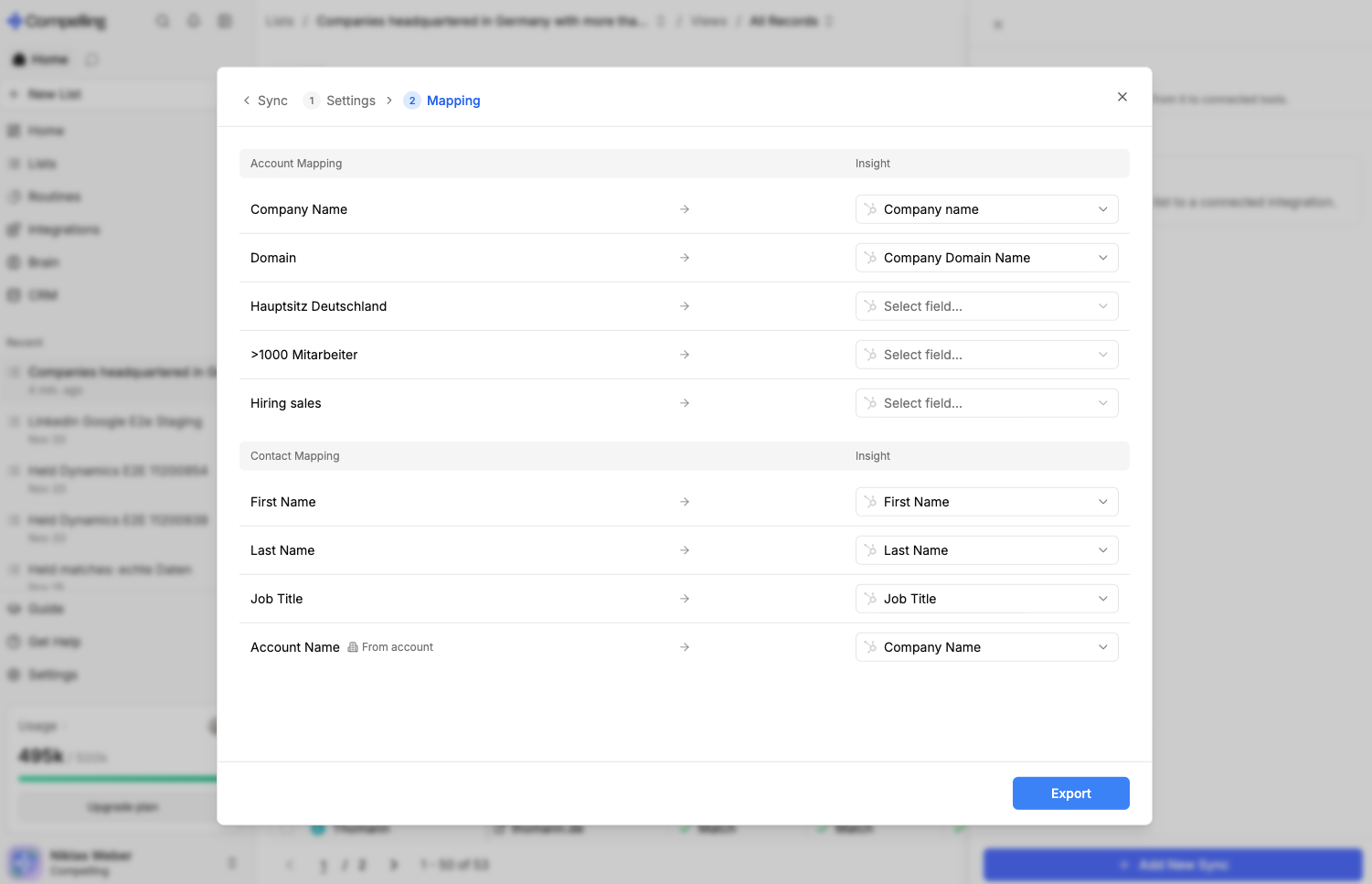
Permanent runs automatically for HubSpot, Pipedrive, Microsoft Dynamics 365, Attio and Webhook: new rows from an ongoing import go out once their insights are done, filtered by the chosen list view. Rows from a CSV or from research you started by hand are synced with a new export.
- Check the preview and click Start export.
Destinations: HubSpot, Pipedrive, Microsoft Dynamics 365, Attio, monday.com, Google Sheets, Instantly, HeyReach and Webhook. The field mapping applies per integration to the whole workspace. On the Free plan the file export contains the first 50 rows.